It can be confusing when your printer suddenly stops producing colors and only prints in black and white. Many users encounter this issue without warning, especially when they need to print images or documents that rely on color accuracy. If you’re dealing with printer not printing color, you’re not alone.
This problem often shows up as a printer only printing black and white, even though color cartridges are installed. In some cases, there is no color printing at all, or certain colors fail to appear on the page. You might also notice color not showing in previews or final output.
The impact is obvious. Documents look incomplete, graphics lose meaning, and printed materials no longer match what you see on screen.
The good news is that most causes are simple and fixable. This guide will walk you through practical steps, from basic checks to more advanced solutions, so you can resolve printer not printing in color and restore proper output.
Why Is Your Printer Not Printing Color?

There are several reasons why this issue happens. Most of them are related to ink supply, hardware condition, or system configuration.
Empty or Low Color Ink
The first thing to check is your ink level. Color printing depends entirely on available ink, and even a slight drop can affect output.
One of the most common reasons a printer won’t print in color is low or empty color ink. Even if black ink is available, the printer may still refuse to produce color output when the color cartridge is depleted or not detected properly.
An empty ink cartridge can stop color output completely, even when everything else looks normal.
Clogged Printhead
If your printer hasn’t been used for a while, dried ink may block the nozzles.
Clogged printheads can block color ink from flowing correctly onto the paper. This usually happens when the printer hasn’t been used for a while, causing the ink to dry and affect color output.
A clogged printhead often leads to faded or missing colors.
Incorrect Printer Settings (Grayscale Mode)
Sometimes the issue is not hardware at all. Your printer may be set to grayscale printing mode.
This setting forces the printer to ignore color ink and produce black-and-white output only. Many users enable it accidentally without realizing.
Outdated or Faulty Printer Driver
Drivers control how your system communicates with the printer. If the driver is outdated or corrupted, it may fail to process color data correctly.
This can result in printer not printing in color, even when the hardware is working fine.
Software or System Glitch
Temporary system issues can also interfere with printing. Software conflicts or background errors may prevent color instructions from being processed.
In some cases, restarting the system resolves the issue immediately.
Quick Checks Before You Start Fixing
Before applying deeper fixes, try these simple checks. They are quick, easy, and often solve the issue without extra steps.
Check Ink Levels
Open your printer software or control panel and check ink levels. Make sure all color cartridges have sufficient ink.
Low levels can reduce output quality or stop color printing entirely. Always confirm this first.
Make Sure Color Printing Is Enabled
Go to your printer settings and verify that color mode is active.
Look for options like “Color” or “Full Color” and disable grayscale if it’s turned on. This step is essential if your printer is not printing colors as expected.
Restart Printer and Computer
Turn off your printer and computer, wait a few seconds, then turn them back on.
This clears temporary glitches that may block printing processes. It’s a simple step, but often effective.
If you still experience printer not printing in color, these checks help narrow down the problem and prepare you for the next steps.
How to Fix Printer Not Printing in Color (Step-by-Step)
If your printer suddenly stops producing colors, don’t panic. The printer not printing in color issue is usually tied to settings, ink flow, or simple system problems. Follow these steps in order to restore proper color output.
Fix 1 – Disable Grayscale or Black & White Mode
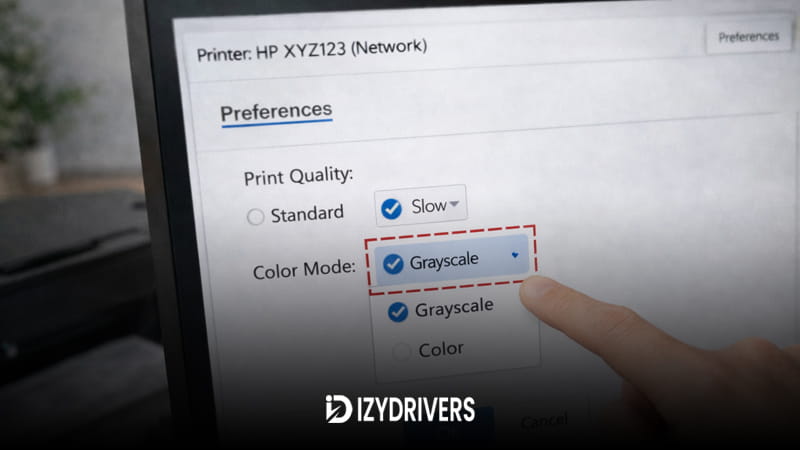
Incorrect settings are one of the most common causes. Many users enable grayscale without realizing it.
Check Printer Preferences
Open your printer settings from Control Panel or print dialog. Look for options related to grayscale printing or black-and-white mode.
If grayscale printing is enabled, your printer will ignore color ink completely.
Change to Color Mode
Switch the setting to full color. Make sure color printing settings are active before printing again.
This simple adjustment often fixes a printer not printing in color issue instantly, especially if the problem appeared suddenly.
| Setting Mode | Output | Use Case |
|---|---|---|
| Grayscale | Black & White only | Save ink |
| Color Mode | Full color output | Normal printing |
Many users overlook this step, even though it is often the root cause of printer not printing in color problems.
Fix 2 – Clean the Printhead
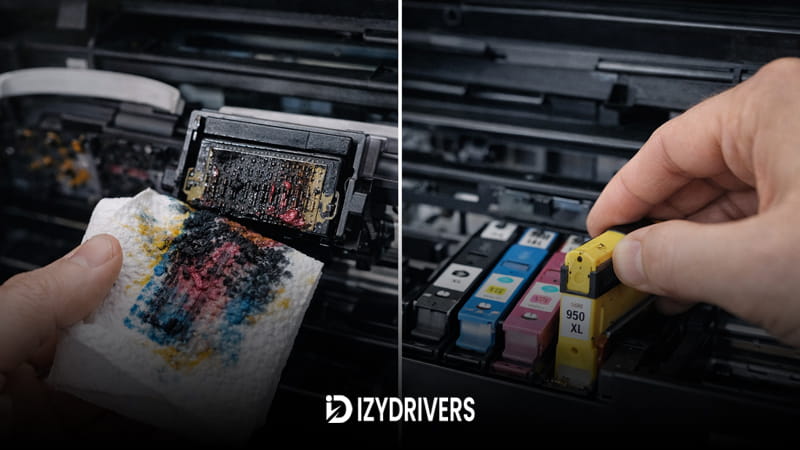
When ink cannot flow properly, colors will not appear on paper. This is where printhead cleaning becomes important.
Run Automatic Cleaning
Most printers include a built-in cleaning feature. Access it through printer software and run the cleaning cycle.
This process clears dried ink and restores flow. It’s a key part of regular printer maintenance.
Manual Cleaning (if needed)
If automatic cleaning doesn’t work, manual cleaning may be required. Carefully remove the cartridge and clean the printhead using a soft cloth.
A clogged printhead can block specific colors, leading to incomplete prints. Running this process often resolves printer not printing in color issues caused by ink blockage.
Fix 3 – Replace or Reinstall Ink Cartridges
Ink cartridges play a direct role in color output. If something is wrong with them, colors will fail.
Check Cartridge Installation
Open the printer and inspect the cartridges. Make sure each one is installed correctly and firmly in place.
A loose or misaligned cartridge can trigger an ink cartridge problem without showing an obvious error.
Replace Empty or Faulty Cartridge
If ink levels are low or empty, replace the cartridge immediately. Sometimes the color ink not working issue comes from cartridges that are not detected properly.
If you’re still facing printer not printing in color, replacing the cartridge is often the most reliable solution.
| Issue | Symptom | Solution |
|---|---|---|
| Empty ink | No color output | Replace cartridge |
| Misaligned cartridge | Missing colors | Reinstall properly |
| Faulty cartridge | Inconsistent color | Use new cartridge |
Cartridge-related issues are one of the most common reasons behind printer not printing in color situations.
Fix 4 – Update or Reinstall Printer Driver
Drivers control how your system sends data to the printer. If something goes wrong, color instructions may not be processed correctly.
Update via Device Manager
Open Device Manager, find your printer, and choose update printer driver. Let Windows search automatically for updates.
This can resolve compatibility issues that affect printing.
Reinstall Driver
If updating doesn’t work, remove the printer and reinstall the driver from scratch. Restart your computer before reinstalling.
A fresh installation often fixes hidden problems. In some cases, a printer not printing in color issue comes from driver conflicts rather than hardware failure.
Fix 5 – Run Printer Maintenance Tools
Most modern printers include built-in tools designed to keep performance stable.
Use Built-in Maintenance Feature
Open your printer software and look for maintenance options. Run cleaning, nozzle check, or deep cleaning if available.
These tools are designed to detect and fix common issues automatically.
Align Printhead
Alignment ensures that ink is applied correctly across the page. Misalignment can cause missing or uneven colors.
Running alignment helps restore accurate output. If your printer still shows printer not printing in color, this step can correct hidden calibration issues.
Additional Tips to Prevent Color Printing Issues
Preventing problems is easier than fixing them. Use your printer regularly to keep ink flowing and avoid dried nozzles. Long periods of inactivity often lead to clogs.
Always use original or high-quality ink. Low-quality cartridges can create inconsistent output and increase the risk of failure.
Avoid leaving your printer unused for extended periods. Regular usage helps maintain stable performance. These simple habits can reduce the chances of encountering a printer not printing in color issue in the future.
Conclusion
Fixing a printer not printing in color issue usually comes down to a few practical steps. Start with checking settings, then move to cleaning the printhead and inspecting cartridges.
If needed, update drivers or use built-in maintenance tools. Each step targets a specific cause, making the process easier to follow.
With the right approach, your printer should return to normal and produce accurate colors again.
FAQs
Why is my printer only printing black?
This often happens due to grayscale settings, empty color ink, or clogged printheads. Check each of these areas first.
How do I enable color printing?
Go to printer preferences and switch from grayscale to color mode. Make sure color printing is enabled before printing.
Why is my color ink not working?
It could be due to clogged nozzles, low ink levels, or cartridge issues. Cleaning or replacing the cartridge usually helps.
How do I clean a printer printhead?
Use the automatic cleaning feature in your printer software. If needed, perform manual cleaning carefully.
Can printer settings disable color printing?
Yes. Incorrect settings can force the printer to use black ink only, leading to a printer not printing in color issue.