Trying to Connect Printer to WiFi can feel surprisingly complicated, even though it’s supposed to be one of the simplest parts of setting up a modern printer. Maybe your device keeps failing to recognize the network, maybe the signal drops halfway through the process, or maybe the setup menu is packed with options that don’t make sense. Whatever the reason, you’re definitely not alone—wireless printer setup is one of the most common frustrations for home and office users today.
The good news? You don’t need any deep technical knowledge to get things working. Whether you’re using HP, Epson, Canon, Brother, or even a basic non-LCD printer, the process becomes far more manageable once you follow the right steps in the right order.
This guide is designed to walk you through everything you need: universal setup methods, brand-specific instructions, reliable troubleshooting tips, and practical recommendations to keep your wireless printing stable in the long run.
By the end of this tutorial, you’ll not only know how to connect your printer to WiFi—you’ll know how to do it quickly, smoothly, and without unnecessary stress.
Understanding How Wireless Printers Work
Wireless printers may seem simple on the surface, but the way they communicate behind the scenes is more advanced than most people realize. When you try to Connect Printer to WiFi, the device isn’t just joining your home network—it’s establishing a secure communication channel that allows computers, smartphones, and tablets to send print jobs through the printer network without any physical cable.
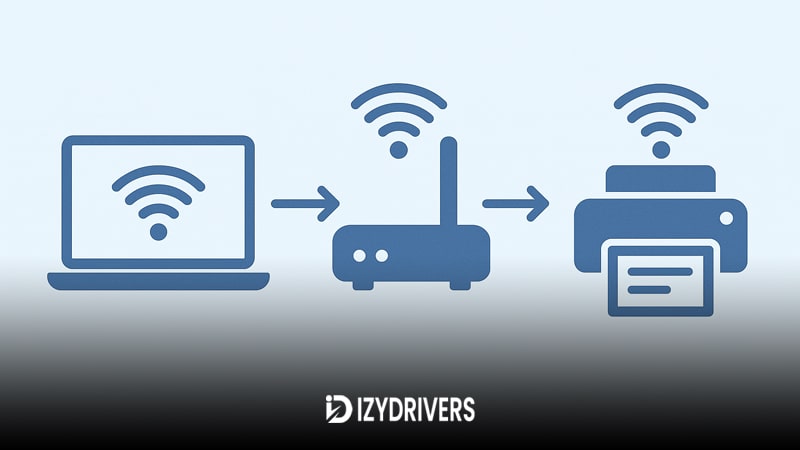
Modern wireless printing relies on your router to act as the central hub. The printer connects to the same WiFi signal your devices use, creating a shared space where all printing requests can flow seamlessly. If the signal is weak, if the network is crowded, or if the printer is too far from the router, the connection process becomes unstable—this is why many users experience delays or failed setups.
Once you understand how a wireless printer communicates, it becomes far easier to troubleshoot issues, choose the right connection method, and maintain long-term printing stability.
What “Wireless Printing” Really Means
“Wireless printing” doesn’t just mean printing without USB cables. It refers to the ability of your printer to communicate over wireless technology, using your local network to send, receive, and manage print tasks. Instead of connecting directly to a single computer, the printer broadcasts its availability over the network, allowing multiple users to print from laptops, phones, or cloud-based apps.
This is also known as network printing, because the entire printing process depends on a stable and secure network—not just the printer itself.
Printer Types That Support WiFi
Not all printers can connect wirelessly. The most common categories that support WiFi include:
- WiFi-enabled printers: Standard home or office printers that include built-in wireless modules.
- Smart printers: More advanced models with app integration, cloud printing, and voice assistant support.
- Multifunction printers (MFPs): Devices that combine printing, scanning, and copying with wireless connection features.
Any printer marketed as a WiFi model will typically support wireless connectivity, but smart printers offer the widest range of features and the most stable wireless performance.
Network Requirements Before You Start
Before connecting your printer to the network, make sure your environment meets the minimum network requirements. Your router should be functioning properly, broadcasting a consistent WiFi signal with enough bandwidth to handle additional devices.
Key things to check:
- Your SSID (network name) is visible
- Your password is correct
- The printer is within router range
- Your router supports 2.4GHz (most printers still prefer this band)
Meeting these requirements helps ensure the WiFi setup process runs smoothly.
How to Connect a Printer to WiFi (Universal Method)
Whether you’re using HP, Canon, Brother, Epson, or another brand, the steps for connecting a printer wirelessly are surprisingly similar. You’ll use one of three common methods: the control panel, the WPS option, or a built-in WiFi setup wizard.
This section includes all the essential steps to help you Connect Printer to WiFi successfully—regardless of the model. By following these universal instructions, you can avoid brand-specific complications and get your printer online quickly.
Using the Printer Control Panel
Most modern printers include a small LCD or touchscreen that gives direct access to WiFi settings.
Here’s the basic process:
- Open the Settings or Network menu
- Select “Wireless” or “WiFi Setup”
- Choose your network name (SSID)
- Enter your WiFi password
- Save and confirm the connection
Once completed, the printer should automatically reconnect to the same network whenever it powers on.
Using WPS Button
If your router has a WPS button, this is usually the fastest method. WPS allows a printer and router to connect without typing a password, making it ideal for quick setups.
Steps typically include:
- Press and hold the WPS button on your router
- Activate WPS on your printer (often within the wireless menu)
- Wait 1–2 minutes for them to pair
This method works best on compatible routers and is perfect for users who want a quick WiFi connect option.
Connecting via WiFi Setup Wizard
Many printers offer a guided process called the WiFi setup wizard, designed to walk you through network detection and pairing step-by-step.
The wizard usually:
- Scans for nearby networks
- Displays all available SSIDs
- Allows manual or automatic selection
- Tests connection stability
- Confirms the final connection
Because the setup wizard manages network detection, it’s often the most reliable method for first-time installation or when troubleshooting connection problems.
How to Connect Printer to WiFi by Brand
Different printer brands often use similar wireless technologies, but each comes with its own interface, app ecosystem, menus, and connection steps. This section gives you clear, brand-specific instructions so you can Connect Printer to WiFi smoothly no matter what model you use. Follow the guide that matches your printer, and you’ll avoid the common confusion caused by brand-specific setup requirements.
Connect HP Printer to WiFi
HP remains one of the most popular printer brands globally, and much of its wireless connectivity revolves around the HP Smart ecosystem. Whether you’re using a LaserJet, DeskJet, OfficeJet, or ENVY model, HP offers multiple connection paths depending on your device’s features.
Using HP Smart App
The HP Smart app is designed to simplify wireless setup, especially for newer HP models.
Steps typically include:
- Download HP Smart on your phone or computer
- Turn on your HP printer and ensure Bluetooth is active
- Open HP Smart and tap “Set Up New Printer”
- Select your printer when it appears
- Choose your WiFi network and enter the password
- Wait for the app to complete the connection
This method is especially useful for first-time setup and mobile-focused users.
Using the Control Panel
Most HP printers with an LCD or touchscreen allow manual WiFi setup.
Common steps:
- On the printer screen, open “Setup” or “Network”
- Tap “Wireless Settings”
- Select “Wireless Setup Wizard”
- Choose your WiFi network
- Enter the password and confirm
Once completed, the printer will store your network credentials for future use.
Using WPS Button
If both the printer and router support WPS, this method offers a quick, password-free pairing.
Steps:
- Press the WPS button on your router
- On your HP printer, open the Wireless menu
- Select “WPS Push Button”
- Allow the devices to connect automatically
This option works best with modern routers and simplifies the entire setup.
Connect Epson Printer to WiFi
Epson printers, especially EcoTank and Workforce models, offer strong wireless features including app control, LCD navigation, and WiFi Direct. Their connection process is straightforward but slightly different from other brands.
Using Epson iPrint
The Epson iPrint app allows wireless setup and printing directly from mobile devices.
Typical steps:
- Install Epson iPrint from your app store
- Turn on your Epson printer
- Open the app and choose “Printer Setup”
- Tap “WiFi Setup”
- Select your printer from the detected list
- Enter your WiFi network details
The app handles most of the configuration automatically.
LCD Panel Setup
Most Epson printers have a clear and simple LCD interface for manual WiFi setup.
Steps:
- Press the Home button
- Select “WiFi Setup” or “Network Settings”
- Choose “WiFi Setup Wizard”
- Pick your WiFi network
- Enter the password and confirm
The printer will test the connection and save it for future use.
WiFi Direct
Epson WiFi Direct enables direct connection without a router.
To use it:
- Enter the “WiFi Direct Setup” menu
- Enable WiFi Direct on the printer
- Note the SSID and password displayed
- Connect your device directly to the printer’s WiFi Direct network
This method is ideal if no router is available.
Connect Canon Printer to WiFi
Canon offers multiple wireless options across its PIXMA, MAXIFY, and imageCLASS lines. Their setup process includes app-based installation, guided wireless modes, and WPS compatibility.
Canon PRINT App
The Canon PRINT app is the fastest way to set up most Canon printers.
Steps:
- Install Canon PRINT on your device
- Turn on your printer
- Open the app and tap “Add Printer”
- Select your printer from the list
- Choose your WiFi network
- Enter the password to confirm
The app completes the connection and registers your device automatically.
Easy Wireless Connect Method
Many Canon PIXMA models include “Easy Wireless Connect,” a guided mode for stress-free setup.
Steps:
- Hold the Wireless button until the WiFi indicator flashes
- Press “OK” or follow the on-screen instructions
- Open Canon PRINT on your phone
- Follow the on-screen setup prompts
- Select your home WiFi network
The printer and app sync seamlessly during this process.
WPS Method
Canon printers also support WPS connection on compatible routers.
Steps:
- Press and hold the WiFi button on your Canon printer
- When the indicator flashes, press the WPS button on your router
- Wait for both devices to complete pairing
This method eliminates the need to enter passwords.
Connect Brother Printer to WiFi
Brother printers are known for their stable wireless connectivity and user-friendly mobile ecosystem. Their setup can be done through an app, control panel, or WPS depending on your model.
Mobile Connect App
Brother’s Mobile Connect app provides a modern and smooth setup experience.
Steps:
- Install Brother Mobile Connect
- Power on your printer
- Tap “Add Machine” in the app
- Select your printer from the available list
- Enter your WiFi credentials
- Wait for the connection to complete
The app also enables easy scanning and cloud printing after setup.
Control Panel Setup
Most Brother printers include a clear LCD menu for wireless setup.
To connect:
- Press the Menu button
- Navigate to “Network”
- Choose “WLAN” → “Setup Wizard”
- Select your WiFi network
- Enter the password
- Save and confirm
The printer will attempt connection and display success when complete.
WPS Setup
If your router supports WPS, Brother makes the process fast and simple.
Steps:
- Press the WPS button on your router
- On the printer, go to Network → WPS
- Select “WPS Push Button”
- Let the printer and router establish the link
This is one of the quickest methods for Brother WiFi setup.
How to Connect a Non-LCD Printer to WiFi
Non-LCD printers can be tricky because you don’t have an on-screen menu to guide the process. Still, even without a display, these models can join WiFi using button combinations, manufacturer tools, or a USB-first installation. This section will help you Connect Printer to WiFi even if your device only has basic buttons.
Using Setup Button Combinations
Many non-display printers rely on specific button combinations to activate wireless modes. These vary by brand, but the general concept is the same: pressing a sequence signals the printer to enter WiFi setup or WPS mode.
Typical steps include:
- Press and hold the Wireless or WiFi button for several seconds
- Wait for the LED to blink, indicating pairing mode
- On some models, press Wireless + Information buttons together
- On others, hold the Power button and tap the Wireless icon twice
These combinations allow the printer to start searching for networks. When used with WPS-capable routers, the pairing can be completed with a single button press.
Using Manufacturer Software
Most major brands offer desktop software that simplifies non-display printer setup by walking you through the wireless installation.
Examples include:
- HP Smart
- Epson Setup Utility
- Canon PIXMA Setup
- Brother Installer
The process typically looks like this:
- Install the manufacturer’s setup software
- Connect the printer temporarily with USB or automatic discovery
- Choose “Wireless Setup”
- Select your home WiFi network
- Enter your password
- Allow the software to send the credentials to the printer
The software acts as the interface your printer lacks, making this method one of the most reliable.
Connecting via USB First-Time Setup
For many non-LCD models, the fastest way to configure WiFi is using a USB cable during the initial installation.
To do this:
- Connect the printer to your computer with USB
- Run the driver or setup utility
- Choose “Configure Wireless Settings”
- Select your network and enter the credentials
- The printer stores the WiFi information and reconnects wirelessly afterward
This method is especially effective for first-time setup and avoids the guesswork of button combinations.
Connecting a Printer to WiFi on Different Systems
Different devices have different methods for discovering and pairing with printers. Whether you’re using Windows, macOS, Android, or Apple devices, the goal remains the same: ensure the printer and the device are connected to the same network so you can Connect Printer to WiFi and start printing immediately.
Windows
Windows offers some of the most seamless tools for detecting printers, especially when the printer broadcasts itself on the network.
Steps usually include:
- Open Settings → Bluetooth & Devices → Printers & Scanners
- Click Add Device
- Allow Windows to scan for available printers
- Select your printer from the list
- Install additional drivers if prompted
If the printer doesn’t show up, manual IP entry or enabling network discovery may be required.
macOS
macOS has strong built-in network printing support, making the setup process simple and stable.
To connect:
- Open System Settings → Printers & Scanners
- Click Add Printer
- macOS will detect available WiFi printers
- Select your printer (AirPrint-supported models appear instantly)
- Confirm installation
macOS automatically installs AirPrint or brand-specific drivers.
iPhone/iPad (AirPrint)
AirPrint eliminates the need for manual setup as long as both devices share the same WiFi network.
To use it:
- Open any app and tap Share
- Choose Print
- Select your AirPrint-compatible printer
- Print directly without installing apps
If the printer doesn’t appear, ensure WiFi is active and AirPrint is enabled.
Android
Android devices typically rely on print services or manufacturer apps.
Steps usually include:
- Install the brand’s print service plugin or app
- Ensure your printer is connected to WiFi
- Open Settings → Connected Devices → Printing
- Enable the print service
- Your printer should appear automatically
Android is flexible and works with both direct WiFi and WiFi Direct setups.
Troubleshooting: Printer Won’t Connect to WiFi
Even when everything seems correct, many users still struggle with getting their device online. This section addresses the most common issues that prevent users from successfully Connect Printer to WiFi, including weak signals, credential problems, interference, and firmware conflicts.
Weak Signal Issues
A poor WiFi signal is one of the most common reasons printers fail to connect.
Symptoms include:
- Frequent connection drops
- Printer not appearing in device lists
- Failed setup attempts
Fixes:
- Move the printer closer to the router
- Reduce interference from walls or metal objects
- Switch your router to the 2.4GHz band
Wrong WiFi Password
Printers are very sensitive to incorrect passwords—even one wrong character will break the connection.
To fix:
- Re-enter the WiFi password using the setup tool
- Ensure no extra spaces or symbols
- Check if your router recently changed credentials
Many routers now separate 2.4GHz and 5GHz passwords; verify you’re using the correct one.
Printer Offline
A “printer offline” error often means the device lost network communication.
Common fixes:
- Restart the printer
- Restart the router
- Reconnect the printer using setup tools
- Ensure the printer and device are on the same WiFi network
This issue is especially common with dynamic IP assignments.
Router Channel Problems
Routers broadcast WiFi on specific channels. If your router uses a congested or incompatible channel, the printer may fail to connect.
To resolve:
- Log into your router
- Change the channel to 1, 6, or 11
- Restart both router and printer
These channels minimize overlap and reduce interference.
IP Address Conflict
If your printer receives an IP address already used by another device, both devices may fail to connect.
Fix options:
- Restart router (forces new IP assignments)
- Assign a static IP to your printer
- Use the printer’s network utility to refresh the IP
Static IPs are recommended for offices or busy networks.
Firmware or Driver Issues
Outdated firmware or drivers can block wireless connectivity.
Solutions:
- Update firmware from the manufacturer’s app or website
- Reinstall printer drivers
- Ensure your OS is updated
- Power-cycle the printer after updating
Firmware bugs often directly affect wireless performance.
Reset Network Settings on Printer
If nothing works, resetting the printer’s network settings often solves the issue.
Typical method:
- Hold Wireless + Cancel for several seconds
- Or access “Network Reset” via control panel (if available)
- Reconfigure WiFi from scratch
This clears corrupted settings and forces a fresh connection attempt.
Tips for a Stable Printer WiFi Connection
Even after your printer is connected, maintaining a stable wireless connection is just as important. A well-optimized network reduces printing delays, connection drops, and random offline errors. These tips help you keep your wireless printer running smoothly in any environment.
Best Placement
Proper printer placement plays a big role in WiFi stability. Wireless signals weaken when obstructed by walls, large furniture, appliances, or long distances.
For best performance:
- Keep your printer within 6–10 meters of the router
- Avoid placing it near microwaves, cordless phones, or thick concrete walls
- Position the printer on an open surface, not inside cabinets
- Keep the printer and router at similar heights
Optimizing placement ensures the printer receives a consistent signal.
Ideal Router Settings
Some routers require small adjustments to maximize compatibility with wireless printers.
Recommended settings include:
- Use the 2.4GHz band (printers connect more reliably than 5GHz)
- Set the channel to 1, 6, or 11 to reduce interference
- Enable WPA2/WPA3 security
- Avoid hiding your SSID
- Ensure DHCP is enabled so the printer can obtain an IP address
These settings make WiFi more stable for both old and modern printers.
Regular Firmware Updates
Manufacturers frequently release firmware updates that improve wireless stability, add features, and fix bugs.
To keep your printer performing well:
- Update via the brand’s mobile app
- Check for updates during routine maintenance
- Restart the printer after updates
- Keep router firmware updated too
A simple update can eliminate long-standing connectivity issues.
Avoiding Network Overload
Too many devices on the same WiFi can slow down or disrupt printing.
To prevent overload:
- Limit unnecessary devices during heavy printing tasks
- Connect high-bandwidth devices (TVs, PCs) to 5GHz
- Assign your printer a static IP if possible
- Use a dual-band router to distribute traffic
Balanced network usage results in faster, more reliable print jobs.
When You Should Use a Wired Connection Instead
While WiFi is convenient, wireless printing isn’t always the best choice. In certain situations, a wired setup like an Ethernet connection provides much better stability, especially for high-volume printing environments.
Consider switching to wired printing if:
- Your WiFi signal is consistently weak
- Your home has many devices connected at once
- You print large documents or graphics daily
- You need maximum reliability for business workflows
- Your router is too far from the printer for stable WiFi
A wired connection eliminates interference issues, prevents signal drops, and ensures stable printing every time. Although less flexible than WiFi, Ethernet remains the top choice for offices, studios, and high-demand printing tasks.
Conclusion
Wireless printing doesn’t have to be complicated. Once you understand how your network works, choose the right setup method, and apply basic optimization steps, you can Connect Printer to WiFi with confidence. Whether you’re using a modern smart printer or a basic non-LCD model, the right approach ensures easy printing, fewer errors, and long-term wireless stability. With the tips in this guide, you can maintain smooth performance and enjoy hassle-free printing across all your devices.
FAQs About How to Connect Printer to WiFi
Why won’t my printer connect to WiFi?
This usually happens due to weak signal, incorrect password, router interference, or outdated firmware. Checking these basics solves most common WiFi issues.
Do I need an app to set up my wireless printer?
Not always. Apps help simplify the process, but many printers allow setup through control panels, WPS, or USB-first installation. Using an app is optional, not required.
Can I use my printer on 5GHz WiFi?
Most printers only support 2.4GHz networks. If your printer doesn’t appear during setup, switch your device to 2.4GHz or create a separate band on your router.
Why does my printer keep going offline?
This often happens due to DHCP changes, IP conflicts, router restarts, or signal interruptions. Assigning a static IP can improve stability during printer setup.
Can I still print if the WiFi goes down?
Yes. You can print using USB, WiFi Direct, or Ethernet as alternatives. Wireless setup brings flexibility, but wired methods remain the most reliable.