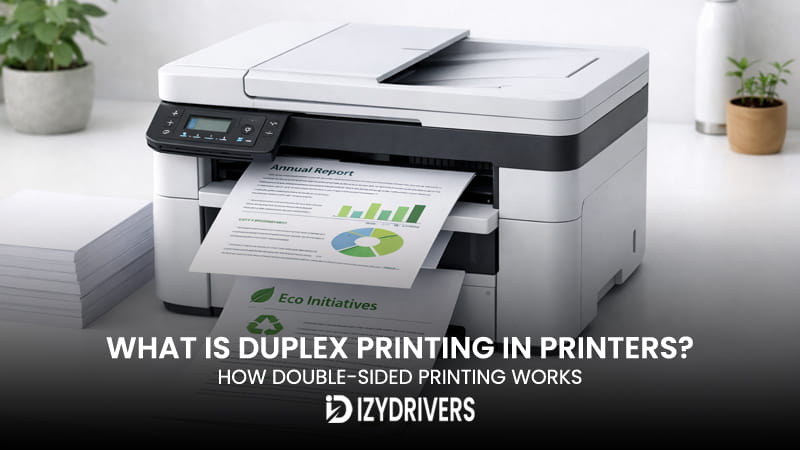
Modern printers include a wide range of built-in capabilities, and duplex printing is one of the most useful features available today. This function allows a printer to produce documents using both sides of a sheet instead of limiting output to a single page surface.
Many users notice the double sided printing option inside the print dialog but rarely explore how the feature actually works. The setting often appears among standard printer features, yet the internal process that handles two-sided pages remains unfamiliar to most people.
Using duplex printing can significantly improve paper saving printing during everyday tasks. Reports, school assignments, manuals, and internal office documents can all fit into fewer pages when printed on both sides.
Learning how this feature works helps users print documents more efficiently while reducing paper use and printing costs.
What Is Duplex Printing?
Duplex printing refers to the ability of a printer to print on both sides of a sheet of paper automatically or with minimal user involvement. This feature allows a document to use the front and back of each page during the printing process.
In a traditional printing setup, a printer produces output on only one side of the page. When a document contains multiple pages, every page uses a separate sheet of paper. A printer that supports this function can print on both sides, which reduces the total number of pages needed.
This capability is now common across many modern printers. Both home printers and office devices often include duplex support as part of the default printer print mode. The option appears inside printer driver settings and print dialogs, allowing users to activate it before sending a document to print.
The main advantage of duplex printing lies in efficiency. Documents become smaller, paper consumption decreases, and printed materials often appear more professional. Manuals, reports, and presentations commonly use double sided printing to keep page counts manageable.
Many organizations enable this feature by default to control printing costs and reduce paper waste. As printers continue to evolve, this capability has become a standard part of modern printing devices.
What Does Duplex Mean in Printing
The word duplex comes from a term that means “double” or “twofold.” In printing technology, the term describes a system that can print on two sides of the same sheet of paper.
When someone refers to duplex printing, they are describing a printer operation that produces output on both the front and back of a page. The printer handles the page orientation so that the text and images appear correctly when the document is turned over.
This terminology appears frequently in printer documentation, driver settings, and device specifications. Many manufacturers include a duplex option within the list of printer print modes, allowing users to switch between single-sided and double-sided printing.
The concept has become common in office printing environments where long documents benefit from more compact page layouts.
Duplex Printing vs Simplex Printing
Printing systems generally support two main printing modes: simplex printing and duplex printing.
Simplex printing describes a standard printing method that produces output on only one side of a sheet. Each page of a document requires a separate piece of paper. This method is also known as single sided printing.
In contrast, duplex printing produces output on both sides of a page. A two-page document can appear on a single sheet, with one page printed on the front and the other on the back.
Simplex printing remains useful for certain types of documents. Forms, certificates, labels, and official paperwork often require single sided printing to maintain clarity or meet formatting standards.
Duplex printing works well for reports, books, manuals, and internal documents. By printing on both sides, large documents become easier to handle and store.
Many modern printers allow users to switch between these printing modes through their printer driver settings, making it easy to select the best option for each print job.
How Duplex Printing Works in Printers
The process behind duplex printing involves a coordinated series of steps inside the printer. A device that supports double-sided output uses specialized hardware and software to manage page orientation, paper movement, and printing order.
When a document enters the printing process, the printer begins by producing the first page on one side of the sheet. After the first side finishes printing, the sheet moves through a controlled paper path that guides it back into the printer.
During this stage, the printer prepares the sheet for the second side. Internal components adjust the orientation so the next page appears correctly aligned. The printer then prints the second side of the document using the same printing mechanism that produced the first page.
This entire process happens automatically in printers that support built-in duplex capability. The internal system coordinates the movement of the page while maintaining proper alignment between both sides.
The operation relies on specialized printer hardware designed to flip or redirect the paper. Once the second side finishes printing, the completed sheet exits the printer as a finished double-sided page.
The table below illustrates the general workflow involved in duplex printing.
| Step | Process |
|---|---|
| 1 | Printer prints the first page |
| 2 | Paper moves through the internal paper path |
| 3 | Duplex unit flips the sheet |
| 4 | Printer prints the second side |
| 5 | Completed page exits the printer |
This process happens quickly in modern printers, allowing large documents to print efficiently without user intervention.
The Duplexer Component
A key component that enables duplex printing is the duplexer. This part acts as a mechanical system that redirects paper during the printing process.
The duplexer works by guiding the printed sheet through an alternate section of the paper path after the first side finishes printing. The sheet moves through rollers that reposition it before sending it back to the printing area.
This movement flips the sheet so the blank side faces the print head or laser assembly. The printer then prints the next page of the document on the reverse side.
Many office printers include a built-in duplexer as standard printer hardware. Laser printers commonly contain this component, allowing them to handle high-volume double-sided printing tasks with minimal delays.
Inkjet printers may include a duplex unit as well, although entry-level models sometimes rely on manual page flipping instead.
Step-by-Step Duplex Printing Process
A typical duplex printing job follows several coordinated steps inside the printer.
First, the printer receives a document from the computer through the print driver. The driver organizes the pages so that the correct sequence appears on each side of the sheet.
Next, the printer begins printing the first page of the document. The printing mechanism applies ink or toner to the paper while the sheet moves through the standard paper path.
After the first side finishes, the paper travels toward the duplex unit. Rollers guide the sheet through a controlled path that flips it over.
Once the sheet returns to the printing position, the printer produces the next page of the document on the opposite side. The alignment system ensures the page orientation remains correct.
Finally, the fully printed sheet exits the printer tray as a completed double-sided document.
Automatic vs Manual Duplex Printing
Printers support two different approaches for duplex printing. The method depends on the printer design and its internal hardware.
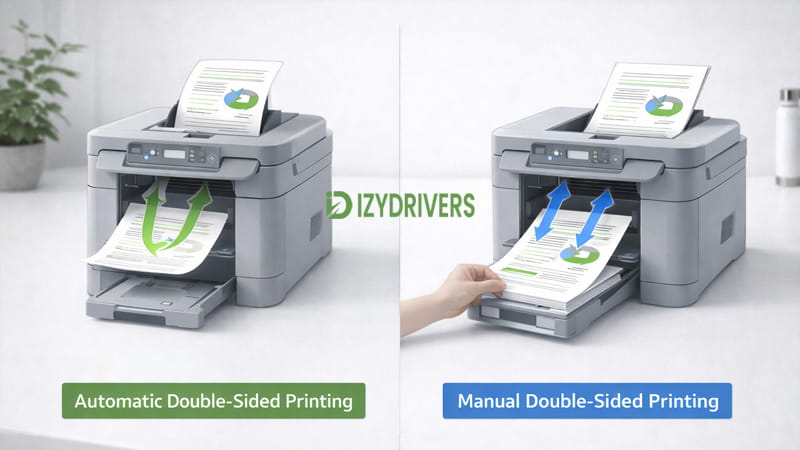
Some printers perform automatic page flipping, while others require users to reinsert paper during the process. These two systems are known as automatic duplex printing and manual duplex printing.
Automatic operation uses internal components to flip the page without user assistance. The printer controls paper movement through the duplex unit, allowing documents to print continuously.
Manual operation follows a different workflow. The printer prints one side of the document first, then pauses so the user can turn the pages and load them again.
Both systems allow documents to print on two sides of the page. The main difference involves speed, convenience, and the level of user interaction required.
Automatic Duplex Printing
Automatic duplex printing relies on internal printer hardware that flips pages during the printing process. The printer prints the first side of the document, moves the sheet through the duplex unit, and prints the second side automatically.
This system appears in many office printers and laser printers designed for high-volume printing. The process runs quickly, allowing large documents to print with minimal interruptions.
Printer settings usually contain a simple option that activates the feature before sending the job to the device.
Manual Duplex Printing
Manual duplex printing requires users to participate in the page flipping process. The printer first prints the front side of each page in the document.
After that stage finishes, the printer pauses and instructs the user to reload the printed sheets. The pages must be placed back into the tray with the correct orientation so the printer can print the reverse side.
Entry-level printers and basic inkjet models often rely on this method. The process takes longer than the automatic approach, yet it still allows documents to print on both sides of the page.
| Feature | Automatic Duplex | Manual Duplex |
|---|---|---|
| Paper flipping | Automatic | Manual |
| Printing speed | Faster | Slower |
| User involvement | Minimal | Required |
| Printer type | Office / laser printers | Entry-level printers |
Benefits of Duplex Printing
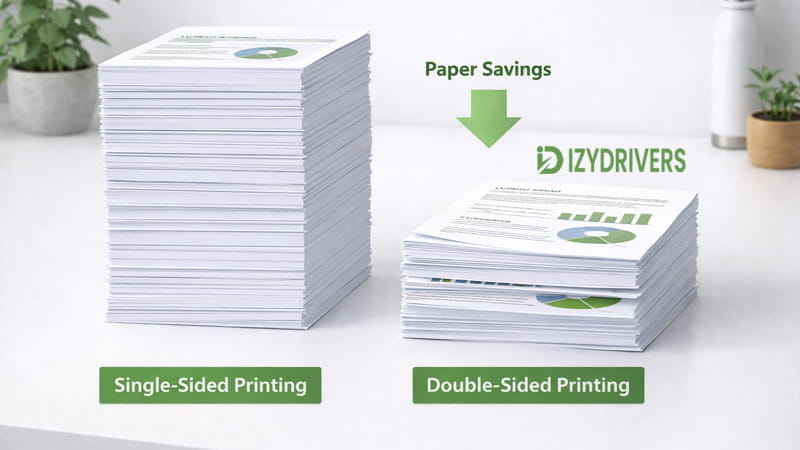
Printing on both sides of a sheet offers several practical advantages for everyday document handling. Duplex printing allows offices, schools, and home users to produce the same amount of information while using fewer pages. This small change can significantly improve printing efficiency across large volumes of documents.
One of the most noticeable benefits is the ability to reduce paper usage. Documents such as reports, manuals, and internal records often contain dozens of pages. When both sides of each sheet are used, the total number of printed pages drops quickly. Fewer pages also mean smaller document stacks, which makes files easier to organize and store.
Cost reduction is another major advantage. Paper expenses add up over time, particularly in offices that print large quantities of documents each day. Using two-sided output reduces the amount of paper purchased and lowers the frequency of restocking supplies.
Another benefit relates to presentation. Documents printed with duplex printing often look more professional, especially when they are bound or compiled into reports. Readers can flip through pages more naturally, similar to reading a book or magazine.
Environmental impact also improves when this feature is used regularly. Organizations that focus on eco friendly printing practices often encourage two-sided output as a standard policy. Reducing paper consumption helps conserve natural resources and lowers the amount of waste generated during daily operations.
When these advantages are combined, duplex printing becomes a simple yet effective way to improve printing efficiency, control costs, and support environmentally responsible document practices.
Paper and Cost Savings
Printing on both sides of a page creates immediate savings in paper consumption and office supply costs. A document that normally requires 100 sheets of paper may need only half that amount when two-sided output is enabled. This improvement directly helps organizations reduce paper usage without changing the content of their documents.
According to data referenced by the U.S. Environmental Protection Agency (EPA), enabling automatic duplex printing can reduce paper usage and printing costs by around 30–50%, since documents are printed on both sides instead of one. For workplaces that produce large volumes of reports or internal documents, this difference can represent a substantial reduction in annual printing expenses.
Fewer printed pages also mean less storage space for files and fewer paper shipments arriving at the office. Over time, this contributes to smoother document management and improved printing efficiency across departments that rely heavily on printed materials.
Environmental Benefits
Two-sided printing also supports environmentally responsible document practices. Paper production requires raw materials such as wood, water, and energy. When offices reduce the number of sheets they print, the demand for these resources decreases.
Lower paper consumption leads to less waste in recycling systems and landfills. Organizations that adopt eco friendly printing policies often encourage employees to print documents on both sides whenever possible. This simple change can significantly reduce the environmental impact of everyday printing tasks.
Smaller paper consumption also reduces transportation emissions linked to paper manufacturing and delivery. Each shipment of paper requires packaging, transportation, and storage, all of which consume energy.
For companies working toward sustainability goals, enabling duplex printing is one of the easiest improvements to implement. It requires no additional equipment and can often be activated through a simple setting in the printer configuration.
How to Enable Duplex Printing on a Printer
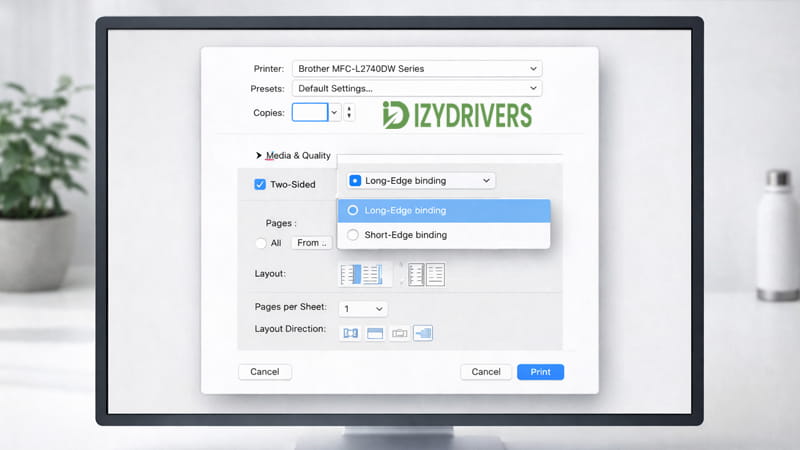
Most modern printers allow users to activate duplex printing directly from the computer’s print menu. The option is usually controlled through the printer driver settings installed on the system. Once enabled, the printer automatically prints on both sides of the page whenever a document is sent to the device.
The first step typically involves opening the print dialog in the application used to create or view the document. Programs such as word processors, PDF readers, and design software all include a print command that sends files to a selected printer.
After opening the print dialog, users select the desired printer from the available list. This step ensures that the correct device receives the document. Many printer drivers include additional configuration options accessible through advanced settings or preferences.
Within these menus, users can locate the double sided printing option. Activating this setting instructs the printer to produce output on both sides of each sheet. Some printers also allow users to select how the pages should be bound when printed.
The process usually follows a simple sequence:
- Open the print dialog in the document application
- Select the target printer
- Enable the double sided printing option or “Print on Both Sides”
- Choose the preferred binding edge
- Start the print job
Once these steps are completed, the printer handles the rest of the process automatically.
Enable Duplex Printing on Windows
Windows computers manage printers through a collection of system tools and configuration menus. To enable duplex printing, users can open the printer settings through the Control Panel or system settings interface.
Inside the printer properties menu, the printing preferences section usually contains advanced options related to layout and page handling. Many printer drivers include a dedicated duplex setting that allows users to switch between single-sided and two-sided output.
After enabling the option, Windows stores the configuration so future print jobs use the same setting automatically. This makes it easier for offices to maintain consistent printing behavior across multiple documents.
Enable Duplex Printing on macOS
macOS provides similar options through its printing interface. When a document is sent to print, the system displays a window containing various configuration settings related to page layout and output format.
Within the layout settings, users can locate the two sided printing option. Activating this option instructs the printer to produce output on both sides of each sheet.
Some macOS drivers also allow users to select the orientation of the binding edge. This helps ensure the printed document opens correctly when pages are flipped horizontally or vertically.
Once the setting is enabled, macOS remembers the configuration for future print jobs unless the user changes it again.
Do All Printers Support Duplex Printing?
Not every printer includes built-in support for two-sided output. While duplex printing has become more common in modern devices, the feature depends on the internal hardware design of the printer.
Devices that support automatic page flipping are often described as duplex capable printers. These models contain a mechanical component that guides paper back through the printing path so the second side can be printed without user assistance.
Laser printers frequently include this capability, especially in office environments where large documents are printed regularly. Many laser printer duplex models provide automatic two-sided output as a standard feature.
Inkjet printers show a wider range of capabilities. Some higher-end models support automatic page flipping, while others rely on manual methods that require the user to reinsert paper. Entry-level devices often include inkjet duplex support only through manual page turning.
Real-World Office Printing Usage
A study conducted by the U.S. Office of Evaluation Sciences found that only about 46% of office print jobs currently use duplex printing, showing that many workplaces still have opportunities to reduce paper waste.
This statistic highlights a gap between available technology and everyday printing habits. Many offices already use printers capable of two-sided output but leave the feature disabled by default.
Encouraging employees to activate this setting can significantly improve document management and reduce operating costs. Even small adjustments in printing behavior can lead to noticeable reductions in paper consumption over time.
Common Duplex Printing Problems
Although two-sided printing works reliably in most modern devices, several issues can occasionally appear. These problems often relate to configuration errors, paper handling, or outdated drivers.
Common duplex printing errors may include:
- Paper jam occurring while the sheet is flipped inside the printer
- Printer hardware that does not support automatic two-sided output
- Incorrect or outdated driver issues that hide the duplex setting
- Incorrect page orientation that causes the second side to print upside down
Most of these issues can be resolved through simple troubleshooting steps. Updating printer drivers, checking paper alignment, and confirming the printer supports duplex capability often fixes the problem quickly.
Regular maintenance also helps prevent jams and mechanical problems during the page flipping process.
Conclusion
Two-sided printing has become an essential feature for modern document workflows. Duplex printing allows printers to place information on both sides of a sheet, reducing the number of pages required for reports, manuals, and everyday documents.
The process relies on internal components that guide paper back through the printer so the second side can be printed accurately. Some devices perform this automatically, while others require manual page flipping.
When used consistently, the feature provides clear advantages. Paper consumption decreases, printing costs drop, and documents appear more organized and professional. It also supports environmentally responsible printing practices by reducing waste.
For homes, schools, and offices that handle frequent printing tasks, enabling duplex printing is a simple improvement that delivers long-term efficiency and sustainability benefits.
FAQs
What is duplex printing?
Duplex printing refers to the ability of a printer to print on both sides of a sheet of paper instead of using a new page for every printed side.
Is duplex printing the same as double sided printing?
Yes. Both terms describe the same function. The feature allows a printer to produce output on the front and back of each sheet.
Do all printers support duplex printing?
No. Some printers include automatic two-sided capability, while others require users to manually flip the pages.
How do I enable duplex printing?
Open the print dialog, select the printer, locate the double-sided option, and enable the setting before sending the document to print.
Is duplex printing better for the environment?
Yes. Printing on both sides reduces paper usage, which helps lower waste and supports environmentally responsible printing practices.