It can be frustrating when your prints come out pale, dull, or lacking detail. Colors that should look vibrant instead appear weak and lifeless. If you’re dealing with printer printing faded colors, you’re not alone. This issue is common across many printer types and can happen without warning.
You might notice a faded print output where images lose depth, or dull colors printing that no longer match what you see on screen. In some cases, the entire page looks like a washed out print, making documents look unprofessional or hard to read.
This problem affects both text and images. Reports, presentations, and photos all suffer when color quality drops. It becomes even more noticeable when printing graphics or detailed visuals.
The good news is that most causes are easy to fix. In this guide, you’ll learn practical steps to solve printer printing faded colors and improve your print quality with simple adjustments.
Why Is Your Printer Printing Faded Colors?
Several factors can cause poor color output. Most of them are related to ink flow, hardware condition, or incorrect settings.
Low or Uneven Ink Levels
Ink levels directly affect how colors appear on paper. When one color runs low, the balance shifts and output becomes weak.
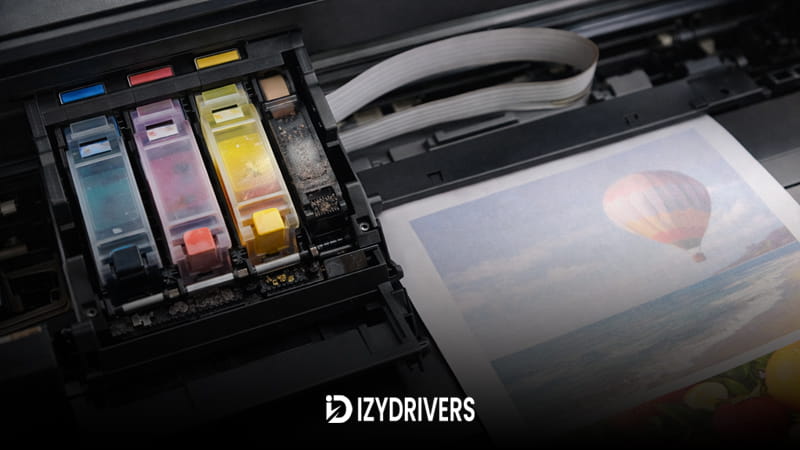
Low or uneven ink levels can cause colors to appear faded or washed out. When certain color cartridges run low, the printer may still produce output, but the color balance becomes weak and less vibrant.
Even if the printer continues working, low ink levels can result in uneven or inaccurate colors.
Clogged or Partially Blocked Printhead
Ink needs to flow smoothly through the printhead. When nozzles are blocked, colors cannot be applied evenly.
A partially clogged printhead can prevent ink from being distributed evenly on the paper. This often results in faded colors, missing lines, or inconsistent print quality across the page.
A clogged printhead often develops when the printer is not used regularly.
Incorrect Print Quality Settings
Your settings can have a major impact on output. If the printer is set to draft mode or low quality, the result will appear lighter than expected.
Adjusting print quality settings can often improve results immediately without changing anything else.
Wrong Paper Type Settings
Printers adjust ink usage based on paper type. If the wrong setting is selected, ink may not be applied correctly.
This can lead to colors looking thin or uneven.
Outdated or Inefficient Printer Driver
Drivers control how the printer processes data. An outdated driver may not handle color output properly, which can result in printer printing faded colors even when everything else seems fine.
Quick Fixes You Should Try First
Before moving to more advanced steps, try these quick solutions. They are simple and often fix the issue right away.
Check Ink Levels
Open your printer software and check ink levels. Make sure all color cartridges have enough ink.
Low levels can weaken output and reduce color intensity. Always start here before trying anything else.
Switch to Higher Print Quality
Go to print settings and change the mode to print quality high. This increases ink usage and improves detail.
This step alone can fix a printer printing faded colors issue caused by low-quality settings.
Restart Printer
Turn off your printer, wait a few seconds, then turn it back on.
This clears temporary glitches that may affect performance. It’s a quick reset that often helps restore normal output.
If you still notice printer printing faded colors, these steps help eliminate simple causes and prepare you for deeper fixes.
How to Fix Printer Printing Faded Colors (Step-by-Step)
If your prints look dull or lack depth, you need to address both ink flow and configuration. A printer printing faded colors issue usually comes from a combination of low ink, blocked nozzles, or suboptimal settings. Follow these steps in order to restore vibrant output.
Fix 1 – Replace or Refill Ink Cartridges
Ink is the foundation of color quality. Even a small imbalance can make prints look weak or uneven.
Identify Low Ink Colors
Check your printer software to see which colors are running low. Often, one color depletes faster than others, especially cyan or magenta.
When that happens, the printer still works, but color balance shifts. This leads to a printer printing faded colors result that looks washed out rather than sharp.
Replace or Refill Properly
Replace the cartridge if levels are low, or refill it if your model supports refilling. Always ensure cartridges are installed correctly and recognized by the system.
Using original or high-quality ink matters. Cheap alternatives can create an ink problem printer situation where colors appear inconsistent.
A fresh supply often fixes printer printing faded colors immediately, especially when the issue comes from uneven ink distribution.
| Ink Condition | Result | Action |
|---|---|---|
| Low ink | Faded colors | Replace cartridge |
| Uneven ink | Inconsistent color | Refill or replace |
| Empty ink | Missing colors | Install new cartridge |
Fix 2 – Clean and Align Printhead
When ink cannot flow evenly, no setting will fix the output. Cleaning is often the most effective step.
Run Automatic Cleaning
Open your printer utility and select the option to clean printhead. This process clears dried ink and restores proper flow.
Run it once, then print a test page. If the issue remains, repeat the process carefully.
Perform Printhead Alignment
After cleaning, align printhead to ensure ink placement is accurate. Misalignment can cause faded areas or uneven color distribution.
This step is important for achieving consistent results across the page.
A clogged system is a major reason behind printer printing faded colors, and cleaning usually delivers noticeable improvement. Combined with alignment, it restores clarity and balance.
Fix 3 – Adjust Print Settings for Better Quality
Settings have a direct impact on output. Even with good ink and clean hardware, poor configuration can reduce quality.
Increase Print Quality Mode
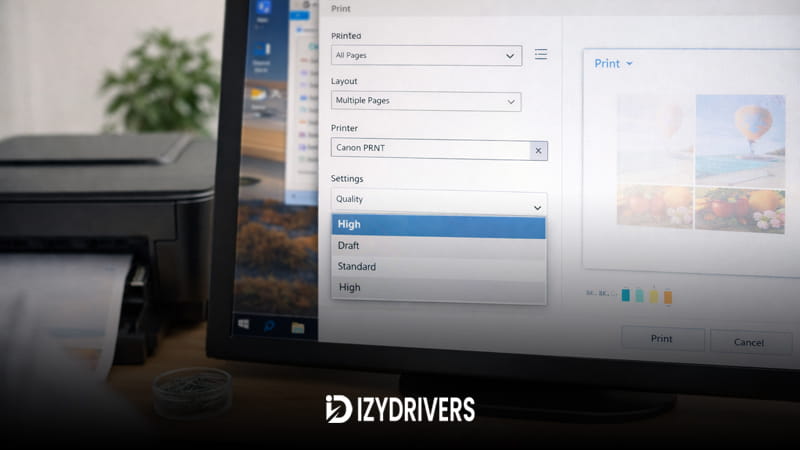
Open print settings and switch to a higher quality mode. Draft mode uses less ink and produces lighter output, which often leads to faded results.
Higher settings increase color density and improve detail.
Select Correct Paper Type
Choose the correct paper type in your settings. Printers adjust ink application based on paper selection.
Wrong settings can limit how ink is applied, causing colors to appear weak.
Balancing speed and quality is important, but if you’re facing printer printing faded colors, quality should be prioritized.
| Setting | Effect on Color | Recommendation |
|---|---|---|
| Draft mode | Very faded | Avoid |
| Standard | Balanced | Daily use |
| High quality | Sharp colors | Best for images |
Fine-tuning print quality settings is one of the easiest ways to improve output without changing hardware.
Fix 4 – Update or Reinstall Printer Driver

Drivers control how data is processed before printing. If they are outdated, color handling may not work properly.
Update via Device Manager
Open Device Manager, locate your printer, and choose update printer driver. Let the system find the latest version.
This ensures compatibility and improves performance.
Reinstall Driver
If updating doesn’t help, remove the driver completely and reinstall it. Restart your computer before reinstalling.
A clean installation can fix hidden issues that affect color output. In some cases, a printer printing faded colors problem is tied to driver conflicts rather than physical components.
Fix 5 – Run Printer Maintenance Tools
Most printers include built-in tools designed to maintain quality over time.
Use Built-in Maintenance
Access maintenance features from your printer software. Run cleaning cycles, nozzle checks, and test prints regularly.
These tools help detect and fix issues early.
Deep Cleaning Option
If standard cleaning is not enough, use deep cleaning. This process uses more ink but removes stubborn blockages.
It is especially useful when normal cleaning fails to restore color quality.
If your printer still shows printer printing faded colors, maintenance tools can resolve deeper internal issues that are not visible from the outside.
Tips to Improve Print Quality Long-Term
Consistency is key to maintaining good output. Use your printer regularly to prevent ink from drying inside the printhead. Long periods of inactivity often lead to clogs.
Always choose original or reliable ink. Poor-quality ink can reduce color accuracy and increase the risk of fading.
Avoid using draft mode for important documents. While it saves ink, it lowers color density and overall quality.
These habits help prevent future issues and reduce the chances of encountering printer printing faded colors again.
Read Also:
- How to Fix ‘Printer Driver Is Unavailable’ on Windows 10/11
- How to Fix Printer Spooler Error on Windows 10/11
- Printer Printing Slow? Here’s How to Speed It Up Quickly
- Printer Not Printing Color? Easy Fixes to Get Your Colors Back
Conclusion
Fixing a printer printing faded colors issue usually involves a combination of ink management, cleaning, and proper settings. Start by checking ink levels, then clean and align the printhead for better flow.
Adjust your settings to prioritize quality, and make sure your drivers are up to date. Each step plays a role in restoring color accuracy.
With the right approach, your printer can produce sharp and vibrant results again.
FAQs
Why are my prints faded?
Faded prints are usually caused by low ink, clogged printheads, or incorrect settings. Each of these factors affects how ink is applied to the paper.
Does low ink cause faded colors?
Yes. Low ink levels reduce color intensity and lead to uneven output. Replacing the cartridge often fixes the issue.
How do I clean a printhead?
Use the automatic cleaning feature in your printer software. If needed, perform deep cleaning for better results.
How can I improve print quality?
Increase print quality settings, use proper paper type, and maintain your printer regularly.
Why do colors look washed out?
Colors may look weak due to low ink, incorrect settings, or hardware issues. A printer printing faded colors problem often comes from these combined factors.