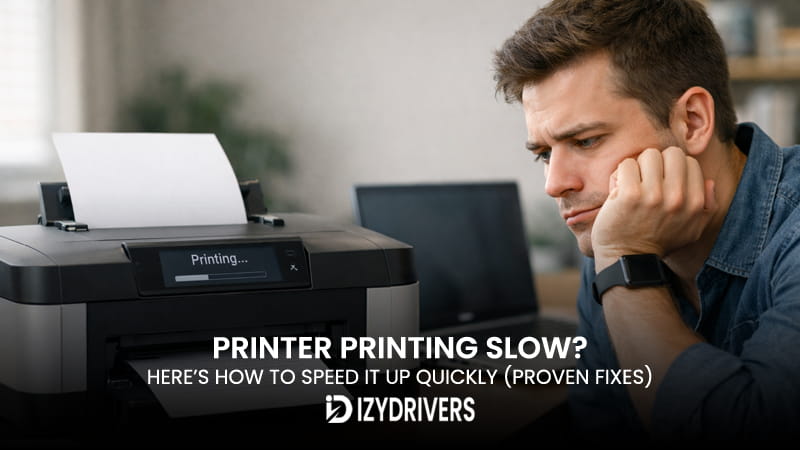
A printer printing slow issue can quickly disrupt your workflow. You click print, then wait… and wait. Nothing happens right away, and the delay keeps growing, especially when handling large documents.
Many users experience this as a printer taking too long to print, even when the device seems fine. The system responds, but the actual printing takes much longer than expected. In some cases, you may notice a slow print speed or a noticeable printing delay before anything starts.
This problem becomes more frustrating when deadlines are tight. Simple tasks begin to feel inefficient, and productivity drops without a clear reason.
The good news is that most speed issues have clear causes. You don’t need advanced tools or technical skills to fix them. In this guide, you’ll learn practical steps and optimization tips to resolve a printer printing slow problem and get your printer running at a normal pace again.
Why Is Your Printer Printing Slow?
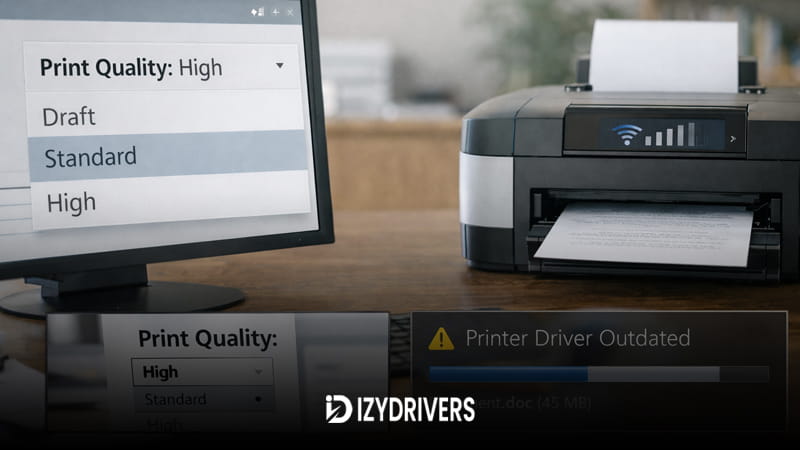
There are several reasons why a printer slows down. Identifying the cause makes it much easier to apply the right fix instead of guessing.
High Print Quality Settings
Print quality has a direct impact on speed. When your printer is set to high print quality, it uses more ink and processes more data for each page.
Print speed is often affected by the quality settings you choose. Higher quality modes require more data processing and ink usage, which can significantly slow down the printing process, especially for images or large documents.
This setting is useful for photos but unnecessary for simple text documents.
Network or WiFi Connection Issues
Wireless printers rely on network stability. If your connection is weak, data transfer slows down before printing even begins.
If you’re using a wireless connection, network stability can impact print speed. A weak or unstable connection may cause delays before printing starts or slow down the data transfer between your computer and the printer.
A wifi printer slow condition often leads to long waiting times before the first page comes out.
Outdated or Inefficient Printer Driver
Drivers control how your system communicates with the printer. If the driver is outdated or poorly optimized, performance can drop significantly.
This is a common cause behind a printer printing slow issue, especially after system updates.
Large File or High-Resolution Documents
Big files require more processing time. Documents with images, graphics, or high resolution take longer to prepare before printing.
Even a fast printer can slow down when handling complex files.
Print Spooler Delay
The spooler manages print jobs in the background. When there is a print spooler delay, tasks may queue up and process slowly.
This often happens when multiple jobs are pending or the system struggles to handle them efficiently. In many cases, a printer printing slow problem is tied to how the spooler handles incoming tasks.
Quick Fixes to Speed Up Your Printer
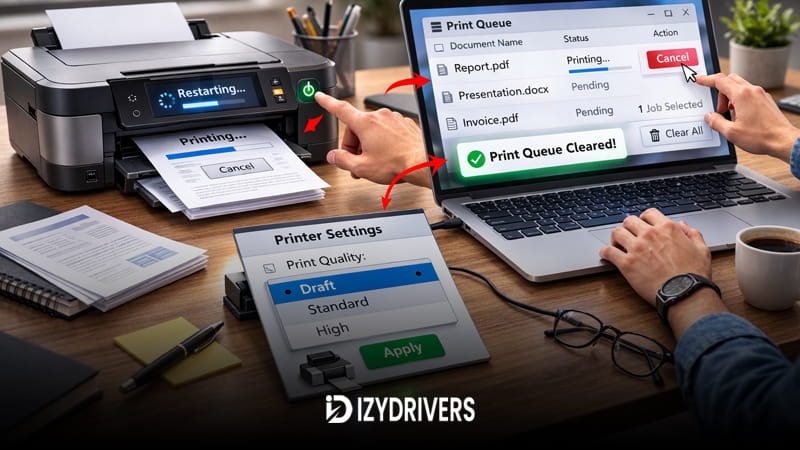
Before adjusting advanced settings, try these simple fixes. They are quick, easy, and often solve the issue immediately.
Restart Printer and Computer
- Turn off your printer
- Shut down your computer
- Wait a few seconds
- Turn both devices back on
This clears temporary glitches that may affect performance.
Cancel Stuck Print Jobs
- Open printer settings
- Check the queue
- Cancel any pending jobs to clear print queue
A blocked queue can slow down everything, even new tasks.
Switch to Draft Mode
- Open print settings
- Select print draft mode
- Confirm and print again
Draft mode reduces processing time and increases speed.
If your printer printing slow issue appears suddenly, these steps can often resolve it without deeper troubleshooting.
How to Fix Printer Printing Slow (Step-by-Step)
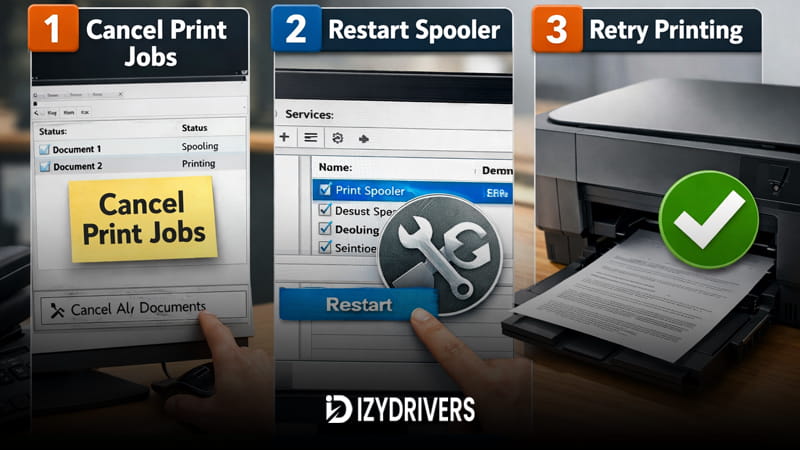
If your printer printing slow, you need a clear approach that targets the real cause. Speed issues often come from settings, connection limits, or background processes. Follow these steps in order to improve performance without guesswork.
Fix 1 – Adjust Print Quality Settings
Print quality plays a major role in speed. Higher settings demand more processing power, more ink, and more time. Lowering the quality can instantly improve performance.
Change to Draft or Standard Mode
Open your print settings before sending a job. Look for quality options such as Draft, Standard, or High.
- Choose Draft for fast text printing
- Use Standard for daily documents
- Reserve High Quality only for images
This simple change can fix a printer printing slow issue in seconds, especially for everyday use.
Optimize Settings for Text vs Images
Not all documents need the same level of detail. Text files print faster when unnecessary enhancements are turned off.
You can reduce print quality for documents and still keep them readable. For images, switch to higher quality only when needed.
This approach helps optimize print settings without sacrificing usability. It balances speed and output quality in a practical way.
| Mode | Speed | Quality | Best For |
|---|---|---|---|
| Draft | Fast | Low | Text documents |
| Standard | Medium | Balanced | Daily printing |
| High Quality | Slow | High | Images/photos |
When settings are too high by default, many users experience a printer printing slow condition without realizing the cause.
Fix 2 – Improve Printer Connection
Connection type can directly affect performance. Wireless setups are convenient but often slower than wired connections.
Switch from WiFi to USB
If possible, connect your printer using a USB cable. This creates a direct link between your computer and the printer.
A wired connection removes delays caused by network interference. It is one of the most effective fixes for a printer printing slow issue.
Improve Network Stability
If you must use WiFi, improve your network conditions:
- Move the printer closer to the router
- Avoid network congestion
- Use a stable frequency band
A network printer slow situation often comes from unstable signals. Fixing the connection can significantly reduce waiting time.
Wireless printing is useful, but it becomes a bottleneck when the signal is weak or inconsistent. Addressing a wifi printer issue can restore normal speed quickly.
Fix 3 – Clear Print Queue and Restart Spooler
A busy or stuck queue can delay every new job. Clearing it helps reset the process.
Clear Stuck Print Jobs
Open your printer queue and cancel all pending documents. This step clears blocked tasks that slow everything down.
Many cases of printer printing slow are caused by jobs that never completed properly.
Restart Print Spooler Service
Restarting the spooler refreshes the system that manages printing.
- Press Windows + R
- Type services.msc
- Find Print Spooler
- Restart the service
This clears background errors and improves responsiveness.
| Step | Action | Result |
|---|---|---|
| 1 | Cancel print jobs | Remove backlog |
| 2 | Restart spooler | Reset process |
| 3 | Retry printing | Faster response |
If you notice delays before printing starts, clearing the queue and restarting the service often resolves the issue.
Fix 4 – Update or Reinstall Printer Driver
Drivers control how efficiently your system communicates with the printer. Old or inefficient drivers can slow everything down.
Update via Device Manager
Open Device Manager, locate your printer, and select update printer driver. Let Windows search for the latest version.
This works well for minor performance issues.
Reinstall Driver Properly
If updating does not help, remove the printer and reinstall it using a fresh driver.
Restart your system before reinstalling to clear leftover files. A clean setup often improves performance and stability.
A printer printing slow issue can sometimes come from outdated drivers that struggle to handle modern systems.
Fix 5 – Optimize File Before Printing
The size and complexity of your file also affect speed. Large files take longer to process before printing begins.
Reduce File Size
Compress images or remove unnecessary elements from your document. Smaller files process faster and reduce delays.
This is especially useful for presentations or image-heavy documents.
Convert to Simpler Format (PDF/Text)
Converting files into simpler formats can improve processing speed. PDFs or plain text files are easier for printers to handle.
When files are too complex, even a good printer may appear slow. Optimizing the file reduces strain on both the system and the printer.
Additional Tips to Improve Printing Speed
Keeping your system optimized helps maintain consistent performance. Use the latest drivers to avoid compatibility issues. Updated software improves efficiency and reduces unexpected delays.
Avoid printing over crowded networks whenever possible. Shared connections can slow down data transfer and affect speed. If available, use a direct connection for better results.
You may also consider upgrading your printer if performance remains limited. Older devices often struggle with modern file sizes and demands. Even basic improvements can prevent a printer printing slow experience in daily use.
Read Also:
- How to Fix ‘Printer Driver Is Unavailable’ on Windows 10/11
- How to Fix Printer Spooler Error on Windows 10/11
- Printer Not Printing Color? Easy Fixes to Get Your Colors Back
- Printer Printing Faded Colors: Causes, Fixes, and Quality Improvement Tips
Conclusion
Fixing a printer printing slow issue comes down to a few key adjustments. Lowering print quality, improving connection stability, and clearing the queue can deliver immediate results.
For long-term improvement, keep your drivers updated and optimize your files before printing. These small changes can make a noticeable difference in speed and overall performance.
FAQs
Why is my printer printing slowly?
Slow printing usually comes from high-quality settings, network issues, or large files. Each of these factors increases processing time.
Does print quality affect speed?
Yes. Higher quality requires more data and ink, which slows down printing. Lower settings improve speed.
How can I make my printer faster?
Switch to draft mode, use a stable connection, and clear the print queue regularly. These steps improve performance quickly.
Why is there a delay before printing starts?
This delay often comes from file processing or spooler activity. Large files or queued jobs can increase waiting time.
Is WiFi slower than USB for printing?
In most cases, yes. USB provides a direct connection, while WiFi depends on network stability.