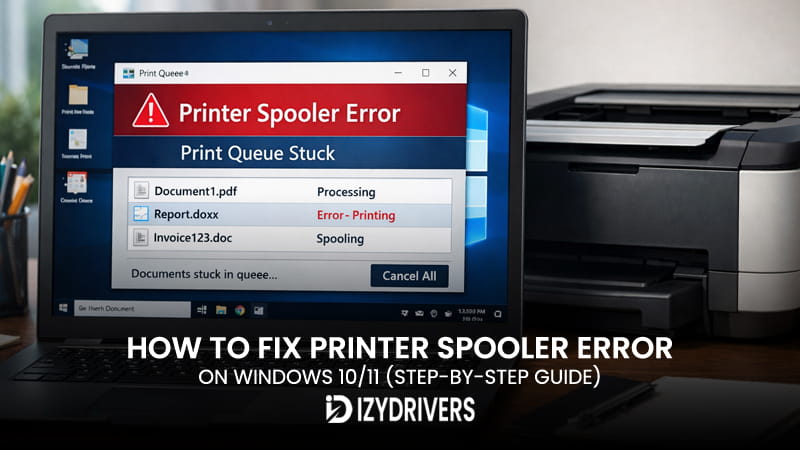
Dealing with a printer spooler error can be frustrating, especially when you need to print something urgently. You click print, everything seems normal, yet nothing comes out. This is one of the most common reasons behind a printer not printing, even when the device is connected and powered on.
In many cases, the issue shows up as a print queue stuck, where documents remain pending without moving forward. Sometimes, the system may even display the printer not responding, leaving users unsure of what went wrong.
This problem often appears suddenly. One day your printer works fine, and the next day it refuses to process any job. The good news is that this error is usually fixable with a few straightforward steps.
In this guide, you’ll learn how to handle a printer spooler error quickly and effectively. Each solution is explained step by step, so you can follow along without confusion and get your printer working again.
What Is a Printer Spooler and Why It Matters
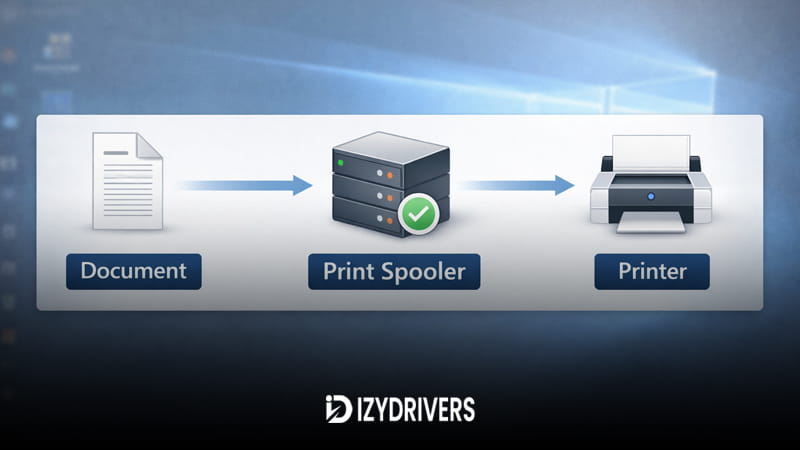
A printer spooler is a background system that manages print jobs before they are sent to the printer. It acts as a queue manager, organizing documents so they can be printed in the correct order.
When you send a file to print, it doesn’t go directly to the printer. Instead, it enters the print queue, where the spooler holds and processes it. This allows multiple documents to be handled smoothly without overwhelming the device.
The print spooler service also controls how jobs are scheduled and executed. It ensures that each task is processed one at a time, preventing conflicts between different print requests.
When a printer spooler error occurs, this system breaks down. As a result, jobs may freeze, disappear, or fail to start entirely. That’s why even a small issue in the spooler can stop printing completely.
Quick Fixes You Should Try First
Before diving into deeper fixes, try these quick steps. They are simple, fast, and often enough to resolve a printer spooler error without further troubleshooting.
Restart Printer and Computer
- Turn off your printer
- Shut down your computer
- Wait for a few seconds
- Turn both devices back on
This clears temporary glitches that may interrupt printing.
Restart Print Spooler Service
- Press Windows + R
- Type “services.msc” and press Enter
- Find Print Spooler
- Right-click and select restart spooler
This refreshes the service and often resolves minor issues.
Cancel All Print Jobs
- Open Devices and Printers
- Select your printer
- Open the queue
- Cancel all documents to clear print queue
If you still see a printer spooler error, these steps help eliminate the most common causes before moving forward.
Why Printer Spooler Error Happens
Understanding why this issue appears can help you fix it faster and prevent it from happening again. A printer spooler error usually comes from service interruptions, file corruption, or system conflicts.
Spooler Service Not Running
The spooler must run continuously in the background. If it stops, printing will fail immediately.
The print spooler error often occurs when the spooler service stops running or fails to respond. When this happens, Windows can’t process print jobs properly, causing documents to get stuck in the queue or not print at all.
Corrupted Print Queue or Files
Sometimes, the problem comes from damaged files inside the spooler system.
Another common cause is a corrupted print queue or damaged spooler files. When too many print jobs are stuck or the files become unreadable, the spooler may crash or keep stopping repeatedly.
This is often linked to corrupted spooler files that prevent proper processing.
Driver Conflict or Outdated Driver
Drivers must work smoothly with the spooler. If there is a driver conflict, communication between the system and printer may fail.
Outdated drivers can also trigger instability, leading to repeated errors.
Too Many Stuck Print Jobs
When too many jobs remain pending, the system may become overloaded. This can cause the spooler keeps stopping or failing to process new tasks.
In many situations, a printer spooler error is simply the result of accumulated issues that build up over time.
How to Fix Printer Spooler Error (Step-by-Step)
Fixing a printer spooler error requires a structured approach. Start with the spooler itself, then move to deeper system-level fixes if needed. Follow each method carefully to restore normal printing.
Fix 1 – Restart Print Spooler Service
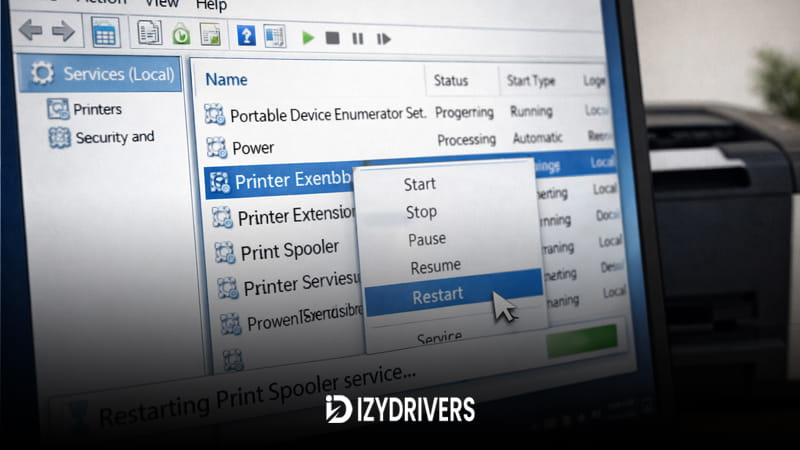
Restarting the spooler is often the fastest solution. It refreshes the system and clears temporary issues.
Method 1 – Using Services.msc
- Press Windows + R
- Type services.msc print spooler and press Enter
- Find Print Spooler
- Right-click and choose Restart
This method is ideal for most users. It is simple and works well when the issue appears suddenly.
Method 2 – Using Command Prompt
- Open Command Prompt as administrator
- Type:
net stop spooler - Press Enter
- Then type:
net start spooler
Use this method if the service does not respond through the standard interface. It provides more control and can handle stubborn cases.
If the system shows a printer spooler error, restarting the service should always be your first action. It directly targets the core process.
| Method | Difficulty | Speed | Effectiveness |
|---|---|---|---|
| Services.msc | Easy | Fast | High |
| Command Prompt | Medium | Fast | Very High |
Fix 2 – Clear Print Queue Manually
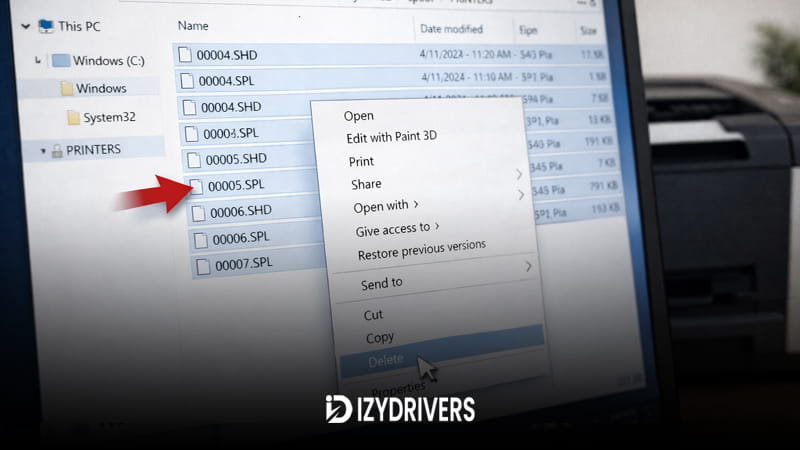
When jobs get stuck, clearing them manually is often the most effective fix. This removes problematic files that block the system.
Step 1 – Stop Spooler Service
- Open Services (Windows + R → services.msc)
- Locate Print Spooler
- Click Stop
Stopping the service prevents file lock issues.
Step 2 – Delete Spool Files
- Open File Explorer
- Navigate to:
C:\Windows\System32\spool\PRINTERS - Delete all files inside the folder
This step helps clear print queue Windows issues caused by stuck jobs.
Step 3 – Restart the Service
Go back to Services and start the spooler again.
This process removes all pending tasks and resets the system. If a printer spooler error keeps appearing, this method often resolves it completely.
| Step | Action | Purpose |
|---|---|---|
| 1 | Stop spooler | Prevent file lock |
| 2 | Delete files | Remove stuck jobs |
| 3 | Restart service | Resume printing |
Fix 3 – Update or Reinstall Printer Driver
Drivers and spooler services are closely connected. If the driver fails, the spooler may also stop working properly.
Update Driver via Device Manager
Open Device Manager, find your printer, then select update printer driver. Let Windows search automatically for updates.
This works well for minor compatibility issues.
Reinstall Driver Properly
Remove the printer from your system, restart your computer, then reinstall printer driver using the latest version.
This method is useful when files are corrupted or mismatched. A clean installation ensures stable communication between the system and printer.
If the error persists as printer spooler error, updating or reinstalling the driver can resolve hidden conflicts.
Fix 4 – Run Windows Printer Troubleshooter
Windows includes a built-in tool designed to fix common printer issues automatically.
How to Access Troubleshooter
Go to Settings → System → Troubleshoot → Other troubleshooters. Select Printer and click Run.
The system will scan for issues and attempt automatic fixes.
When This Method Works
This option is effective for simple configuration problems. It can fix permissions, service errors, and minor mismatches without manual steps.
If you encounter a printer spooler error, this tool is a quick way to identify and resolve basic issues.
Fix 5 – Advanced Fix (If Spooler Keeps Stopping)
If basic solutions do not work, deeper system fixes may be required.
Run SFC Scan
Open Command Prompt as administrator, then run sfc /scannow. This scans for damaged system files and repairs them automatically.
System file corruption can affect spooler performance.
Disable Conflicting Services
Some background services may interfere with printing. Try disabling unnecessary services temporarily to identify conflicts.
This step helps resolve cases where the spooler keeps stopping due to system interference. If the issue continues, a deeper configuration review may be needed.
Read Also:
- How to Fix ‘Printer Driver Is Unavailable’ on Windows 10/11
- Printer Printing Slow? Here’s How to Speed It Up Quickly
- Printer Not Printing Color? Easy Fixes to Get Your Colors Back
- Printer Printing Faded Colors: Causes, Fixes, and Quality Improvement Tips
Conclusion
A printer spooler error may seem complicated at first, but most cases can be fixed with simple steps. Restarting the spooler, clearing stuck jobs, or reinstalling drivers usually solves the problem.
Work through each method in order, and you will likely restore your printer without needing advanced tools.
FAQs
What is a printer spooler error?
A printer spooler error occurs when the system responsible for managing print jobs fails to work properly. This prevents documents from being processed or printed.
Why does the print spooler keep stopping?
This can happen due to corrupted files, service interruptions, or driver issues. In some cases, too many stuck jobs overload the system.
How do I restart the print spooler service?
Open Services, find Print Spooler, then click restart. You can also use Command Prompt with simple commands.
How do I clear a stuck print queue?
Stop the spooler service, delete files from the spool folder, then restart the service to resume printing.
Can a driver cause spooler errors?
Yes, driver issues can trigger a printer spooler error. Updating or reinstalling the driver often resolves the problem.