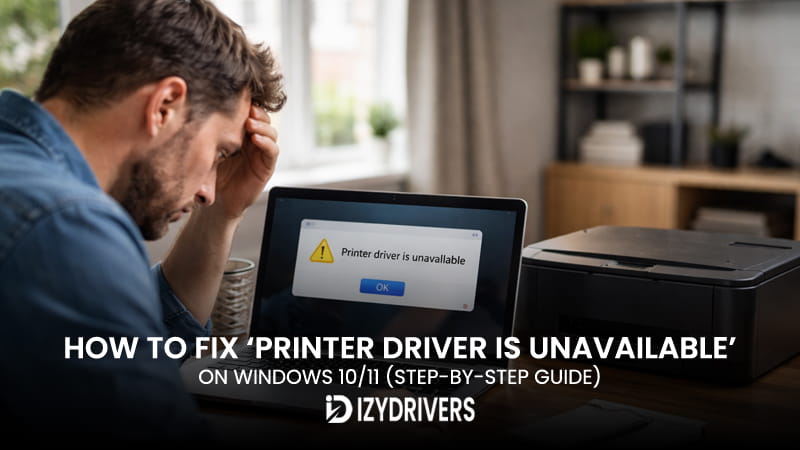
Seeing the message printer driver is unavailable can stop your work instantly. One moment everything looks fine, then your printer suddenly refuses to cooperate. Many users face this issue when their printer is not printing, even though the device is properly connected and powered on.
This situation often leads to confusion. The printer appears ready, yet documents stay stuck in the queue or fail to start. In some cases, the system shows a driver problem or marks the printer not responding without any clear explanation.
The good news is that this error is usually fixable without advanced technical skills. Whether it’s caused by a minor glitch or a deeper driver issue, there are practical steps you can follow.
In this guide, you’ll learn what the error means and how to fix it quickly. If your screen shows printer driver is unavailable, you’re in the right place to get things working again.
What Does “Printer Driver Is Unavailable” Mean?
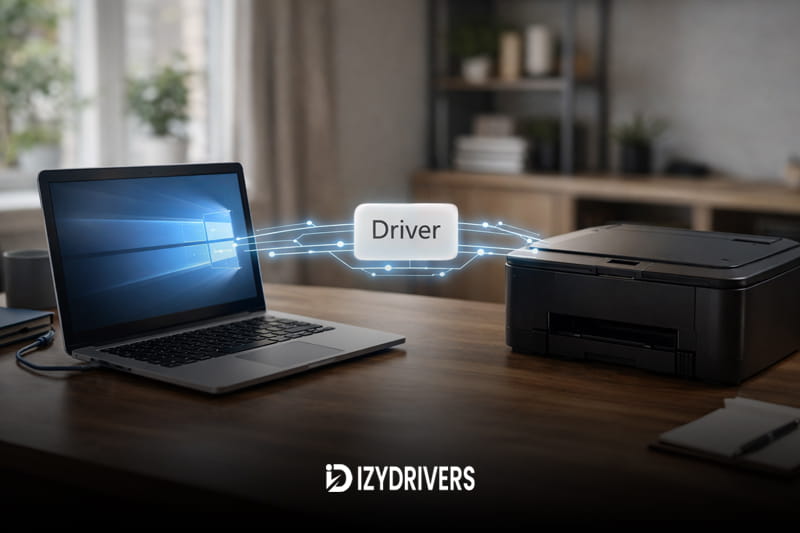
When you see the message printer driver is unavailable, it simply means your computer cannot communicate properly with the printer. The driver acts as a translator between your operating system and the printer hardware.
Without a working driver, your system cannot send print instructions correctly. Even if the printer is connected, the job will not start. This is why the device may appear idle while nothing actually prints.
The “printer driver is unavailable” error often occurs when the driver is outdated, corrupted, or not installed correctly. Since the driver acts as the bridge between your system and the printer, any issue with it can prevent the device from receiving print commands.
Several conditions can trigger this. An outdated driver may no longer match your system. A corrupted driver can break communication. In other cases, a missing driver means the system has nothing to work with at all.
Quick Fixes You Should Try First
Before moving into deeper troubleshooting, try a few simple steps. These quick fixes often resolve the issue without needing advanced changes, especially when printer driver is unavailable appears unexpectedly.
Restart Your Printer and Computer
Start with a basic restart. Turn off your printer, shut down your computer, then power both back on after a few seconds.
This clears temporary glitches that may cause the printer offline status or interrupt communication. It’s simple, yet surprisingly effective in many cases.
Check USB or WiFi Connection
Next, confirm your connection. For USB printers, ensure the cable is firmly connected. For wireless devices, check that both the printer and computer are on the same network.
A loose cable or unstable connection can cause the system to show printer not detected, even when the device is physically present.
Set Printer as Default
Open your printer settings and make sure the correct device is set as default. If another printer is selected, your system may send jobs to the wrong device.
If you’re still seeing printer driver is unavailable, don’t worry. These quick checks eliminate common causes and prepare you for the next steps.
Why This Error Happens
Understanding the root cause helps you fix the issue faster. The printer driver is unavailable error can appear for several reasons, and each one affects how your system communicates with the printer.
Outdated or Incompatible Driver
Drivers need to match your operating system. After updates, older drivers may no longer work properly. This creates an incompatible driver Windows update situation, where the system cannot recognize the device correctly.
Corrupted Driver Files
Driver files can become damaged over time. A corrupted driver may still exist on your system but fail to function properly, leading to repeated errors.
Windows Update Conflict
In many cases, this error appears when Windows can’t find a compatible driver for your printer. This usually happens after a system update, where the existing driver no longer matches the current Windows version, causing the printer to stop working properly.
This type of driver conflict often happens silently, leaving users unsure what changed.
Print Spooler Issues
The spooler service manages print jobs in the background. When it fails, jobs may freeze or disappear.
A spooler service error issue can prevent the system from processing tasks, even if the printer itself is working fine. This can trigger the printer driver is unavailable message as a result of stalled communication.
How to Fix “Printer Driver Is Unavailable” (Step-by-Step)
If you’re dealing with the printer driver is unavailable error, the best approach is to go step by step. Start with the most common fixes, then move toward deeper solutions if needed. Each method below targets a specific cause, so you can narrow down the issue quickly.
Fix 1 – Update Printer Driver
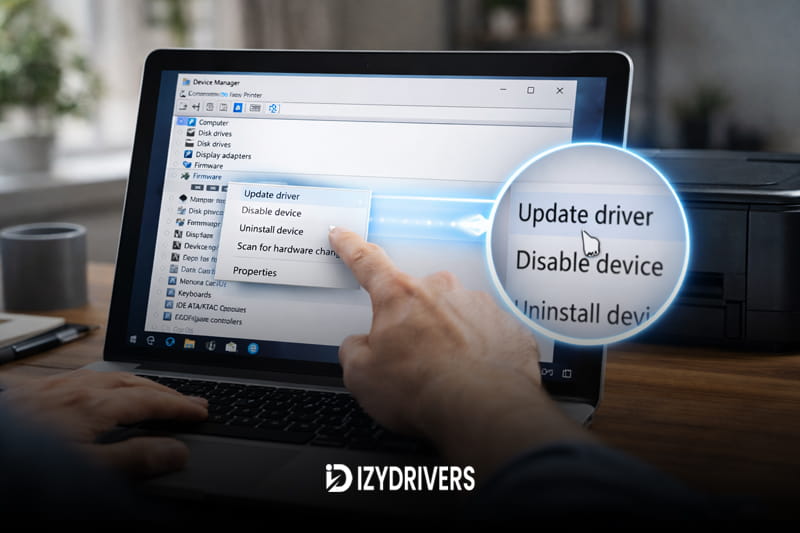
Keeping your driver updated is often the fastest solution. Many errors appear simply due to outdated software.
Using Device Manager
Open Device Manager, locate your printer under “Printers” or “Print queues,” then right-click and choose “Update driver.” Select automatic search, and Windows will try to find the latest version.
This method is ideal when you want a quick fix without downloading anything manually. It works well in most cases where the system can still detect the device.
Using Windows Update
Go to Settings → Windows Update, then check for updates. Optional updates may include printer drivers.
This option is useful if your system recently changed. It helps install driver Windows updates that match your OS version.
If the issue shows as printer driver is unavailable, updating is always the first step to try before anything else.
| Method | Difficulty | Success Rate | Notes |
|---|---|---|---|
| Device Manager | Easy | High | Quick automatic update |
| Windows Update | Easy | Medium | Depends on OS update |
| Manual Download | Medium | Very High | Most reliable |
Fix 2 – Reinstall Printer Driver
If updating doesn’t work, reinstalling often solves deeper problems. This process clears broken files and replaces them with a clean version.
Remove Existing Printer
Go to Control Panel → Devices and Printers. Right-click your printer and select remove printer Windows option.
Then open Device Manager and uninstall the driver completely. This step removes any corrupted components causing the issue.
Reinstall Driver Properly
Restart your computer first. Then reconnect the printer and reinstall the driver using either automatic detection or a fresh download.
This method is effective when printer driver is unavailable keeps returning after updates. It resets everything from scratch and removes hidden conflicts.
| Step | Action | Purpose |
|---|---|---|
| 1 | Remove printer | Clear corrupted driver |
| 2 | Restart PC | Reset system cache |
| 3 | Reinstall driver | Fresh installation |
Fix 3 – Restart Print Spooler Service
The print spooler controls how print jobs are handled. When it fails, tasks can freeze or disappear.
Steps to Restart Spooler
Press Windows + R, type “services.msc,” and press Enter. Find “Print Spooler,” right-click it, then choose restart.
This quick action clears pending jobs and refreshes the service.
Why This Works
When the printer queue stuck issue occurs, the spooler cannot process tasks properly. Restarting it clears the queue and restores normal function.
If your screen shows printer driver is unavailable, the problem may not be the driver itself but the service behind it.
Fix 4 – Download Driver Manually
Automatic methods don’t always find the correct driver. In that case, manual installation is more reliable.
From Official Website
Visit the official driver website of your printer brand such as HP, Canon, Epson, or Brother. Search for your exact model and download printer driver that matches your system.
Avoid third-party sources. They may provide outdated or unsafe files.
Install Safely
After downloading, run the installer and follow the instructions. Make sure to select the correct version for your Windows system.
Manual installation is often the best solution when printer driver is unavailable persists after multiple attempts. It ensures full compatibility with your device.
Fix 5 – Run Windows Troubleshooter
Windows includes a built-in troubleshooter that can detect and fix common issues automatically.
How to Access
Go to Settings → System → Troubleshoot → Other troubleshooters. Find “Printer” and click Run.
The system will scan for problems and attempt to fix them without manual input.
When It Works
This tool is helpful for minor configuration issues. It can resolve errors related to connections, permissions, or simple driver mismatches.
If you encounter printer driver is unavailable, this method is worth trying before moving to advanced steps.
Fix 6 – Advanced Fix (If It Still Doesn’t Work)
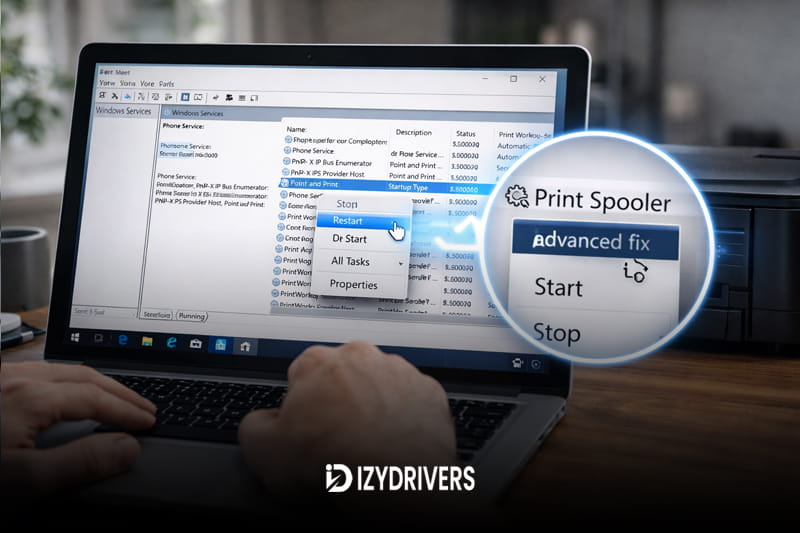
If all basic solutions fail, deeper system checks may be required.
Run SFC Scan
Open Command Prompt as administrator, then type “sfc /scannow” and press Enter. This scans your system for damaged files and repairs them automatically.
System file corruption can sometimes interfere with drivers.
Reset Printer Settings
Remove all printer configurations, then set everything up again from the beginning. This includes reconnecting the device and reinstalling drivers.
These steps are useful when the printer driver is unavailable error is caused by deeper system-level issues that basic fixes cannot resolve.
Read Also:
- How to Fix Printer Spooler Error on Windows 10/11
- Printer Printing Slow? Here’s How to Speed It Up Quickly
- Printer Not Printing Color? Easy Fixes to Get Your Colors Back
- Printer Printing Faded Colors: Causes, Fixes, and Quality Improvement Tips
Conclusion
Fixing the printer driver is unavailable error does not have to be complicated. Most issues can be resolved by updating or reinstalling the driver, while others may require simple service resets or manual installation.
Start with quick fixes, then move step by step if needed. With the right approach, your printer should be back to normal without requiring professional help.
FAQs
Why is my printer driver unavailable?
This usually happens when the driver is outdated, corrupted, or incompatible with your system. The printer driver is unavailable message appears when communication between the system and printer fails.
How do I reinstall a printer driver?
Remove the printer from your system, restart your computer, then install the driver again using either automatic detection or a manual download.
Can Windows update cause printer issues?
Yes, system updates can create compatibility problems. An existing driver may no longer match the updated OS.
Why is my printer connected but not printing?
This may happen due to driver issues, connection problems, or spooler errors. Even if the device is connected, it cannot process jobs properly.
Do I need to update printer drivers regularly?
Yes, keeping drivers updated helps maintain compatibility and prevents errors. Regular updates reduce the chance of unexpected printing problems.